Search Google or Type a URL: What It Means & How to Fix It

Artificial Intelligence
September 13, 2026
You launch your browser, click into the top bar to visit a client portal, type the domain name, and hit Enter—only to land on a noisy Google results page crowded with sponsored ads. Instead of reaching the server directly, your browser treated your destination as a query and sent your keystrokes straight to an ad auction.
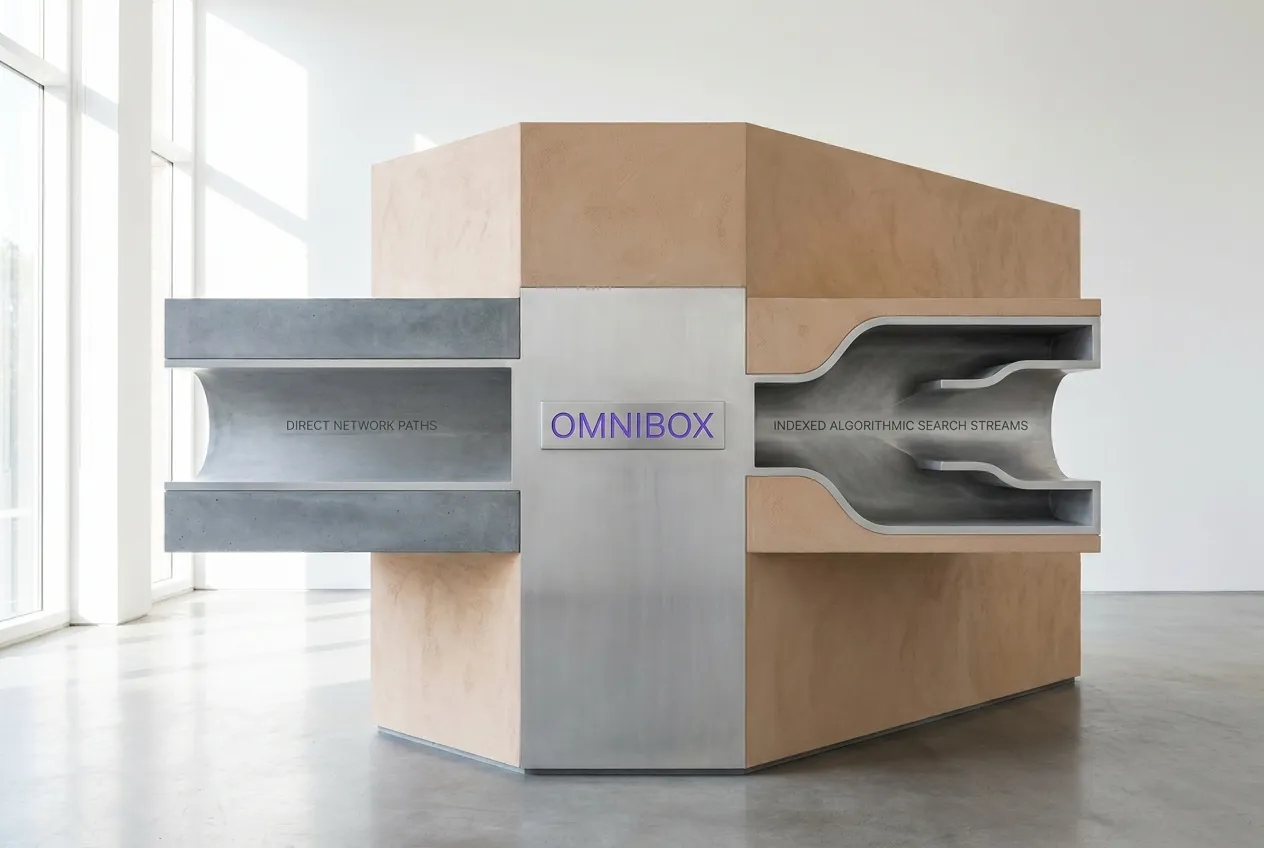
The placeholder text "Search Google or type a URL" is Google Chrome's indicator that its address bar—formally known as the Omnibox—functions as both a web search input and a direct website address bar. If your input matches standard domain syntax (like example.com), the browser connects directly to that host via DNS. If your input contains spaces, missing extensions, or unrecognized text, the browser routes it through your default search engine instead.
This dual functionality saves time for billions of daily sessions, but it also creates confusion, unintended search logging, and unexpected redirects. Understanding how this interface parses your keystrokes allows you to reclaim control over your browsing privacy, fix unwanted search engine takeovers, and navigate the web with precision.
The Evolution of the Omnibox: Why Browsers Merged Two Inputs
For the first fifteen years of consumer web browsing, navigation and discovery lived in separate compartments. Browsers like Internet Explorer, Netscape Navigator, and early versions of Mozilla Firefox featured two distinct boxes at the top of the window:
- The Address Bar (Location Bar): Dedicated exclusively to Uniform Resource Locators (URLs) like
http://www.nytimes.com. Typing plain text here resulted in a server error or a crude "keyword navigation" failure. - The Search Bar: A secondary box, usually tucked into the top-right corner, wired to a specific search engine API like Yahoo, AltaVista, or Google.
When Google released Chrome in September 2008, it eliminated the secondary search box entirely, debuting the unified Omnibox. The Chromium engineering team recognized that everyday web users rarely distinguished between querying an index and entering a network host address. To the average person, "going to Facebook" meant either typing the full address or typing the brand name into a search box.
By merging both inputs into a single field backed by predictive algorithms, Chrome streamlined screen space and established a permanent gateway through which Google could capture search intent. Today, every major browser—including Apple Safari, Microsoft Edge, Mozilla Firefox, and Brave—relies on this same dual-purpose architecture.
How Chrome Decides: The Internal Heuristics Engine
When you type a string of characters into the address bar and press Enter, the browser does not guess randomly. Chromium's underlying parser runs your input through a deterministic heuristics pipeline to categorize it as either a navigation target or a search query.
User Input ──► Lexical Tokenizer ──► Scheme/TLD Check ──► Direct Navigation (DNS)
                                          │
                                          ▼ (No Scheme / Invalid TLD)
                                     Search Engine (HTTP GET Query)
1. Protocol Scheme Detection
If your input starts with an explicit protocol scheme—such as https://, http://, ftp://, or file:///—the parser bypasses search engine routing immediately. The browser recognizes this as an unambiguous network instruction and attempts to open the socket directly.
2. Top-Level Domain (TLD) Verification
When you enter a term without a protocol (such as company.com or news.org), Chrome checks the final token against the Mozilla Public Suffix List (PSL) and the Internet Assigned Numbers Authority (IANA) root database. If the extension matches an authenticated TLD, the browser treats it as a domain and initiates a DNS lookup.
3. Whitespace and Character Validation
Spaces act as an immediate disqualifier for standard domain routing. The moment you press the spacebar inside the bar, Chrome's parser flags the string as a multi-token text query. Even if you type nytimes .com with an accidental space before the period, the parser rejects it as a direct web address and converts it into a search query.
4. Single-Word Intranet Resolution
Single-word terms like localhost, router, or corporate intranet tags (like wiki/) represent the most complex parsing challenge. Chrome handles this by executing a dual-path check:
- It immediately executes a search query for the term so you receive instant feedback.
- Simultaneously, it performs a background DNS query to see if a local network host matches that single word.
- If a local intranet host responds, Chrome presents an infobar asking: "Did you mean to go to http://wiki/?"
The Omnibox is Chromium's unified top-level input interface that dynamically parses user keystrokes into either a direct URI network request or a formatted search engine query string.
5. IP Address Matching
If you type a valid IPv4 address (e.g., 192.168.1.1) or a bracketed IPv6 address ([::1]), the Omnibox detects standard network octets and routes the request directly to the host IP, bypassing any search index.
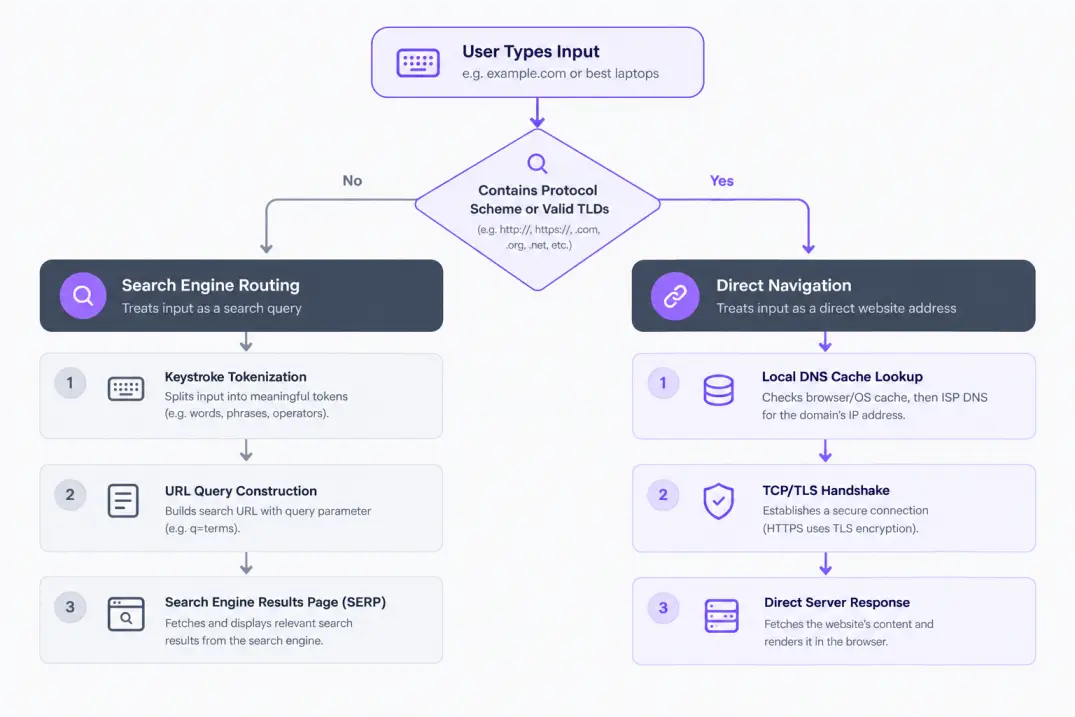
Direct Navigation vs. Search Query: What Happens Under the Hood?
Choosing whether to type a complete web address or run an algorithmic query fundamentally alters your data flow across the internet. The network handshakes, privacy exposure, and server responses differ substantially between the two paths.
| Technical Attribute | Direct URL Navigation | Search Engine Query |
|---|---|---|
| Initial Request | Direct DNS lookup to resolver | HTTP GET request to search provider |
| Data Transmitted | Hostname only (via encrypted SNI/DNS) | Full search terms, client ID, device telemetry |
| Intermediaries | Local DNS cache, Recursive Resolver, Host Server | Search Provider Servers, Ad Network Exchanges |
| Bandwidth Overhead | Low (direct connection to target) | Higher (loads entire SERP with scripts and assets) |
| Interception Risk | Typo-squatting, unencrypted HTTP snooping | Malicious search ads, tracking profiles, query leakage |
| Analytics Impact | Recorded as "Direct Traffic" in analytics | Recorded as "Organic Search" or "Paid Search" |
When you use direct navigation, your browser contacts a recursive DNS server (such as Cloudflare's 1.1.1.1 or Google's 8.8.8.8) to translate the human-readable domain into an IP address. Once resolved, your machine establishes a direct TLS handshake with the destination server. Outside of standard DNS logging and Server Name Indication (SNI) packet headers, no commercial search database tracks what you are visiting.
Conversely, when you search a term, your entire phrase travels over HTTPS to your default search provider's endpoint (e.g., https://www.google.com/search?q=your+query). The search engine logs your user ID, IP address, timestamp, browser fingerprint, and search intent. It then returns an HTML document listing algorithmic organic rankings mixed with sponsored pay-per-click links. You then click an outbound tracking link before finally arriving at your target.
Privacy & Security Implications: Telemetry, Autocomplete, and Ad Traps
While the unified bar feels like an innocent local tool, its default configuration constantly broadcasts user input over external networks. Understanding these background mechanics is essential for protecting your digital footprint.
Keystroke Logging via Autocomplete APIs
By default, modern browsers query an autocomplete server as you type each individual character. If you type the letters m-y-b-a-n-k, Chrome makes background asynchronous requests to an endpoint like google.com/complete/search?q=myb before you ever hit Enter.
Client Keydown ('m')    ──► GET /complete/search?q=m    ──► JSON Suggestions Returned
Client Keydown ('my')   ──► GET /complete/search?q=my   ──► Updated JSON Payload
Client Keydown ('myb')  ──► GET /complete/search?q=myb  ──► Updated JSON Payload
Google uses this keystroke stream to predict your destination in real time. While convenient, this transmits raw, partially formed thoughts, sensitive internal hostnames, and accidental password entries directly across network boundaries.
The Search Ad Impersonation Trap
One of the most widespread security threats facing consumer internet users stems from searching for brand names instead of typing direct URLs. When users search for terms like "Chase Bank login" or "PayPal support" in the address bar, criminal operations frequently run malicious Google Ads targeting those exact transactional keywords.
These malicious ads use deceptively similar display URLs to masquerade as authentic financial institutions. Users who click the first result on the Search Engine Results Page (SERP) land on credential-harvesting phishing sites. Had those users typed the known URL directly into the address bar, the threat vector would have been eliminated entirely.
Never type the brand name of your bank, password manager, or email provider into the address bar to click the top search result. Always type the complete domain directly or use an authenticated browser bookmark to bypass sponsored search engine impersonation ads.
Omnibox Prerendering and Network Overhead
To create an impression of instantaneous loading, Chromium browsers utilize background prerendering. When the browser's scoring engine determines with high confidence that you are about to select a specific suggestion, it silently requests that webpage in the background before you press Enter. While this shaves milliseconds off perceived load times, it consumes additional device memory, strains mobile battery life, and establishes HTTP connections to servers you may never intend to visit.
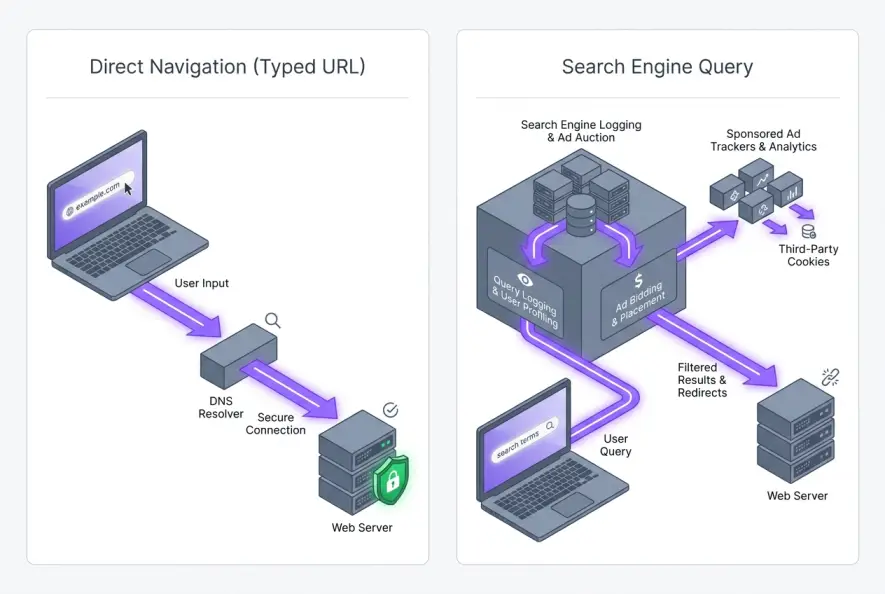
Should You Search Google or Type a URL? A Practical Decision Matrix
Deciding between searching or entering a direct address comes down to navigation intent, connection security, and data privacy. Use the following framework to guide your daily browser habits:
When You Should Always Type the URL Directly
- Accessing Authenticated Portals: Banking services, healthcare dashboards, corporate intranets, and SaaS applications should always be entered as full domains (or launched via trusted bookmarks).
- Conserving Mobile Data: Navigating directly avoids loading bloated search engine result pages, asset-heavy advertisements, and analytics tracking scripts.
- Visiting Known Internal Network Nodes: Accessing router administration interfaces (
192.168.0.1) or local development servers (localhost:3000) should be typed explicitly with prefixes or port numbers to prevent accidental public search queries. - Preventing Query Leakage: When looking up sensitive technical documentation or proprietary company information, direct navigation prevents search engines from indexing your proprietary queries.
When You Should Use Search Queries
- Discovery and Research: When looking for comparisons, reviews, or solutions to unknown technical errors, search queries allow algorithms to aggregate authoritative answers.
- Fuzzy Recall: When you remember the name of an article or software package but cannot recall the exact top-level domain (
.io,.co, or.com), querying the engine is safer than guessing random domains. - Verification of Suspicious Sites: If you encounter an unfamiliar service, searching its name brings up community sentiment, scam reports, and editorial evaluations.
According to the Google Chrome Help Documentation, users have total autonomy over which provider processes their unformatted queries, meaning your address bar does not have to remain permanently tied to Google's ecosystem.
How to Remove or Change "Search Google or Type a URL"
Many users find the persistent gray prompt distracting or wish to replace Google with a privacy-respecting alternative like DuckDuckGo or Brave Search. While Chrome does not provide a native toggle to hide the Omnibox itself—since a browser cannot navigate without an address input—you can completely change its default search engine, remove the centered New Tab Page search bar, or eliminate browser hijacking software.
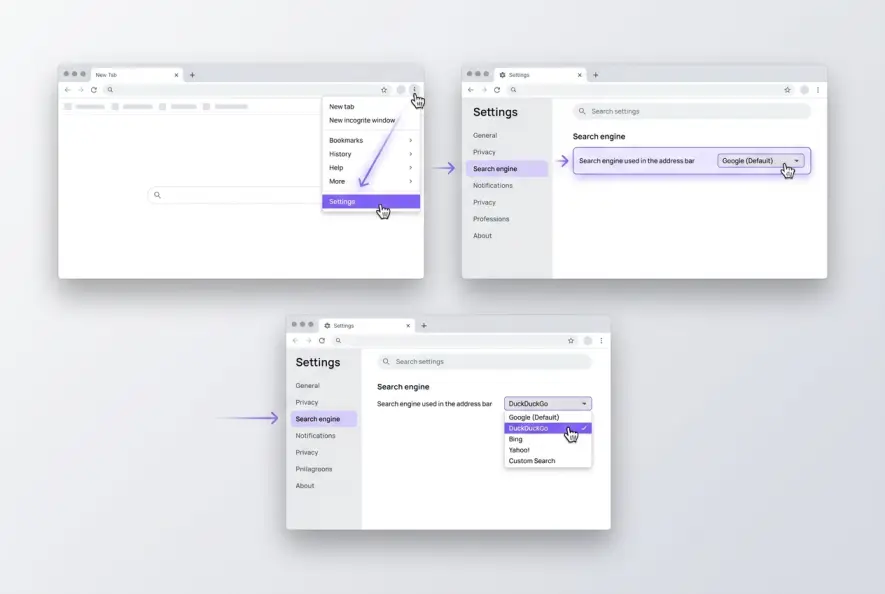
Step 1: Change the Default Address Bar Search Engine
To redirect queries away from Google to another provider, update your browser configuration:
- Open Google Chrome on your computer.
- Click the three vertical dots (menu) in the top-right corner and select Settings.
- In the left-hand navigation menu, select Search engine.
- Locate the dropdown menu labeled "Search engine used in the address bar".
- Select your preferred alternative, such as DuckDuckGo, Bing, or Ecosia.
Once updated, the Omnibox placeholder text immediately changes from "Search Google or type a URL" to "Search DuckDuckGo or type a URL" (or the corresponding name of your selected provider).
Step 2: Remove Unwanted or Hijacked Search Engines
If your address bar constantly defaults to unfamiliar engines like Yahoo, Ask.com, or obscure search portals, your browser profile may be infected by an ad-injection extension or browser hijacker.
- Go to
chrome://settings/searchEnginesin your address bar. - Scroll down to Site search and Search engines.
- Review the list of installed providers. If you see suspicious entries (e.g.,
search-engine-hub.comormobility-search), click the three dots next to the entry and click Delete. - Next, navigate to
chrome://extensions/. - Inspect every installed add-on. Remove any extension you did not manually install, particularly PDF converters, free VPNs, or utility toolbars. Refer to Google Web Store Extension Management for additional security audits.
Step 3: Remove the Centered Search Bar on the New Tab Page
The centered search box on Chrome's New Tab Page (NTP) is actually a visual "fakebox." Clicking inside it immediately redirects your cursor to the top Omnibox. If you prefer a completely clean, distraction-free screen without this prompt, you can install an open-source extension like Empty New Tab Page from the Chrome Web Store. Alternatively, configure your startup settings under chrome://settings/onStartup to load a blank page (about:blank) upon opening new tabs.
Power-User Omnibox Configurations and Hidden Shortcuts
Beyond basic search queries and URL navigation, the Omnibox houses several powerful developer tools and productivity shortcuts built directly into the Chromium Core Engine.
1. Tab-to-Search Site Shortcuts
You can turn any searchable website into a direct Omnibox command without navigating to its homepage first. For instance, you can configure Chrome so that typing wiki followed by the Tab key instantly searches Wikipedia directly from your address bar.
To configure custom site shortcuts:
- Navigate to
chrome://settings/searchEngines. - Click Add next to the "Site search" table.
- Enter the site name, a quick shortcut keyword (e.g.,
@github), and the query URL string with%sin place of the query parameter (e.g.,https://github.com/search?q=%s).
Target Engine: GitHub
Shortcut Keyword: @gh
Search Query URL: https://github.com/search?q=%s
Now, typing @gh python in your address bar jumps straight to GitHub's internal repository results.
2. Omnibox Actions (Chrome Pedals)
Chrome contains built-in command interpreter shortcuts known as Actions (formerly Pedals). By typing operational phrases directly into the address bar, you can execute complex browser maintenance commands without navigating deep settings menus:
- Type
"clear cache"or"wipe history"to reveal an immediate 1-click button to launch the browsing data dialog. - Type
"manage passwords"to launch the credential management vault. - Type
"update chrome"to initiate an automatic system build verification check. - Type
"incognito"to open a private session immediately.
3. Inspecting Parsing Mechanics via chrome://omnibox/
For developers and curious webmasters, Chromium provides an internal diagnostic console located at chrome://omnibox/. This tool reveals the real-time scoring calculations, history matching weights, and autocompletion providers triggered by every keystroke you enter.
If Chrome incorrectly auto-completes an old, broken URL every time you type the first letter of a site, highlight that suggestion in the dropdown list using your keyboard arrow keys and press Shift + Delete (or Shift + Fn + Delete on Mac) to permanently erase it from your local Omnibox cache.
The Webmaster & SEO Perspective: Navigational Queries vs. Direct Traffic
How everyday users interact with the address bar has a profound influence on digital marketing metrics and search engine optimization. As explored in our deep-dive on /blog/zero-click-search-seo-how-to-win-traffic-in-2026, search engine interfaces increasingly intermediate the relationship between users and content publishers.
Analytics Channel Attribution Distortion
In web analytics tools like Google Analytics 4 (GA4), sessions are grouped into acquisition channels based on referral data:
- When a visitor types
yoursite.comand hits Enter, the browser does not pass an HTTP referer header. GA4 registers this session as Direct Traffic. - When a visitor types
yoursiteor mistypes the URL with a space, Chrome fires a query to Google. The user clicks your brand ranking on the SERP, transmitting agoogle.comreferer. GA4 registers this exact same intent as Organic Search.
When non-technical audiences rely on the prompt "Search Google or type a URL" as a general-purpose launcher, your organic branded search metrics artificially inflate while direct navigation numbers decline. This behavioral shift can skew marketing attribution models and make performance tracking more complex.
Guarding Your Branded SERP Real Estate
Because so many visitors type domain names without TLDs, your branded search footprint is your de facto digital homepage. If competitors or predatory affiliates bid on your brand name in Google Ads, users attempting to navigate to your platform may get diverted to competitor landing pages.
Maintaining strong technical site health ensures your pages rank prominently when navigational intent occurs. Understanding /blog/how-google-ranks-new-pages-from-publish-to-page-one helps webmasters defend their core navigational keywords against SERP volatility and unexpected algorithmic displacement. Furthermore, staying vigilant against /blog/search-intent-drift-why-top-pages-lose-rankings ensures your primary domain assets consistently satisfy both navigational and informational user demands.
Troubleshooting: When Address Bar Inputs Fail
When the Omnibox fails to behave as expected, the issue is typically rooted in corrupted local cache files, faulty flag settings, or network DNS conflicts. Review these solutions for common address bar errors:
Issue 1: Valid URLs Force a Google Search Instead of Loading
If typing mysite.local or mycompany.dev forces an external search instead of opening the local site, Chrome's parser has failed to recognize the extension as a valid TLD.
- The Fix: Prepend the address with an explicit protocol scheme:
http://mysite.localorhttps://mycompany.dev. Once visited, Chrome caches the domain and will navigate directly on future visits.
Issue 2: Address Bar Search Engine Keeps Reverting to Yahoo or Bing
If your default search engine resets to Yahoo, Ask, or an unrecognized portal every time you restart your computer, a malicious extension or background script has locked your preferences.
- The Fix: Reset Chrome settings to their factory state by navigating to
chrome://settings/resetand selecting Restore settings to their original defaults. This disables all third-party extensions, clears temporary cookies, and restores your default search provider to system defaults without deleting your saved personal bookmarks or passwords.
Issue 3: Address Bar Freezes or Clears Keystrokes While Typing
If your cursor stutters or the text clears mid-word, Chrome's predictive prerender pipeline is likely crashing during background network queries.
- The Fix: Go to
chrome://settings/performanceand toggle Preload pages to Off. This stops the browser from pre-fetching background assets while you are actively typing in the Omnibox.
Mastering how the Omnibox separates network destinations from search queries transforms your browser from a passive data-collection funnel into an efficient, secure tool. By configuring your preferred search provider, pruning rogue extensions, and typing full domain targets for sensitive tasks, you ensure your navigation remains direct, private, and under your control.
Artificial Intelligence
Intelligence without limits.
We believe great content deserves honest authorship—even when it's AI.
Frequently Asked Questions
It is placeholder text in Google Chrome indicating that the address bar (Omnibox) is dual-purpose. Entering a full web address (like example.com) navigates directly to that site, while entering words or phrases without domain extensions executes a web search.
While the top address bar itself cannot be hidden, you can remove the placeholder by changing your default search engine in Chrome Settings > Search engine. To remove the large centered search box on the New Tab Page, install a minimalist extension like Empty New Tab Page or set your startup page to about:blank.
Typing a verified URL directly or using a saved bookmark is significantly safer for sensitive services like banking, password managers, and email. Searching for brand names exposes you to malicious sponsored search ads and typo-squatting schemes.
Chrome triggers an automated search if the address contains an accidental space, lacks an authenticated top-level domain (TLD), or uses an unconventional local intranet extension. Prepending the address with http:// or https:// forces direct navigation.
Yes. If Chrome's default search suggestions are active, your browser sends asynchronous keystrokes to Google's autocomplete servers as you type to return instant query suggestions and prerender top results.
This almost always indicates that a malicious browser extension or unwanted software program has hijacked your search settings. Inspect your extensions at chrome://extensions/, remove unfamiliar add-ons, and reset your default provider under chrome://settings/searchEngines.
Yes. Navigate to Chrome Settings > You and Google > Sync and Google services, then toggle off 'Improve search suggestions'. This prevents the browser from transmitting keystrokes to Google while you type.